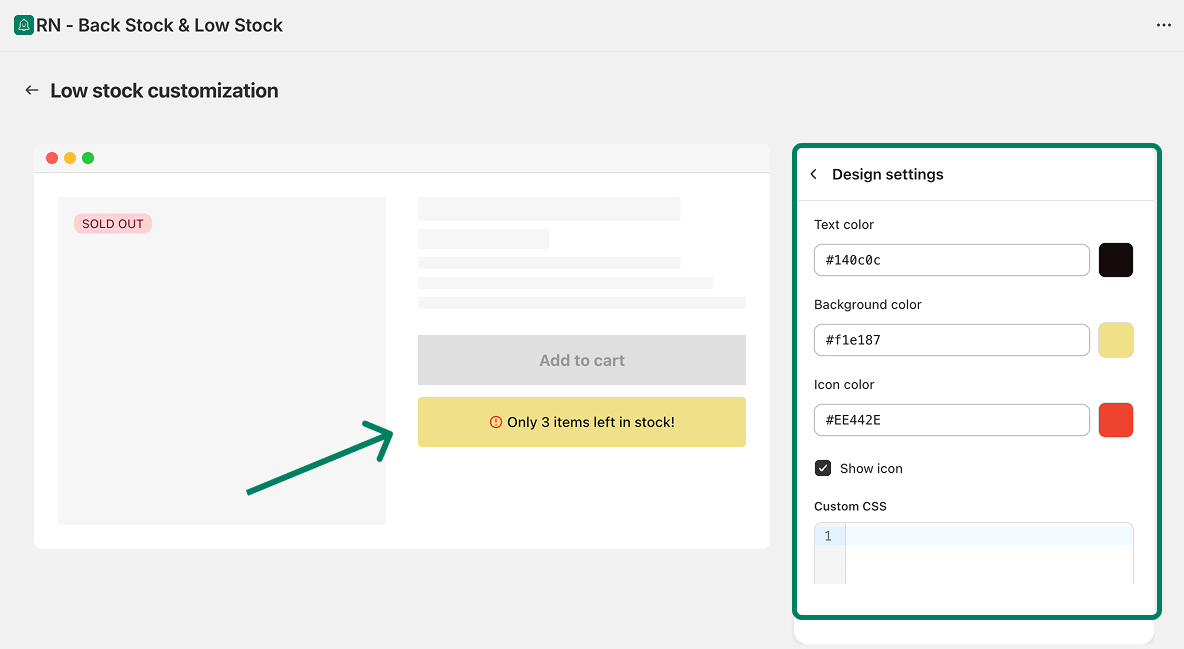
You can customize how low stock messages look and what they say on your product pages. This helps match the message with your store’s style and branding.
Open the RN – Back Stock & Low Stock app.
Go to Low stock from the left menu.
Click Customize appearance.
This will open the Low stock customization screen.
What You Can Customize
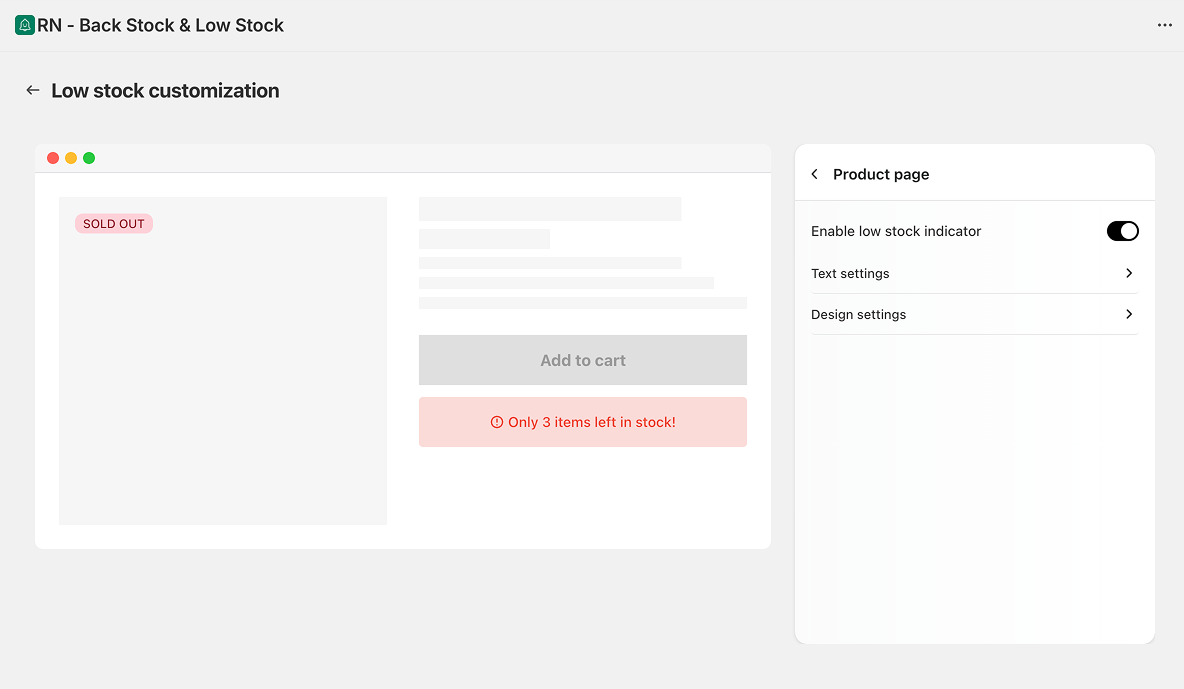
Customization is done per product page. Inside the customization panel, you will find these options:
Enable or Disable the Message
Turn the Low stock indicator on or off for product pages.
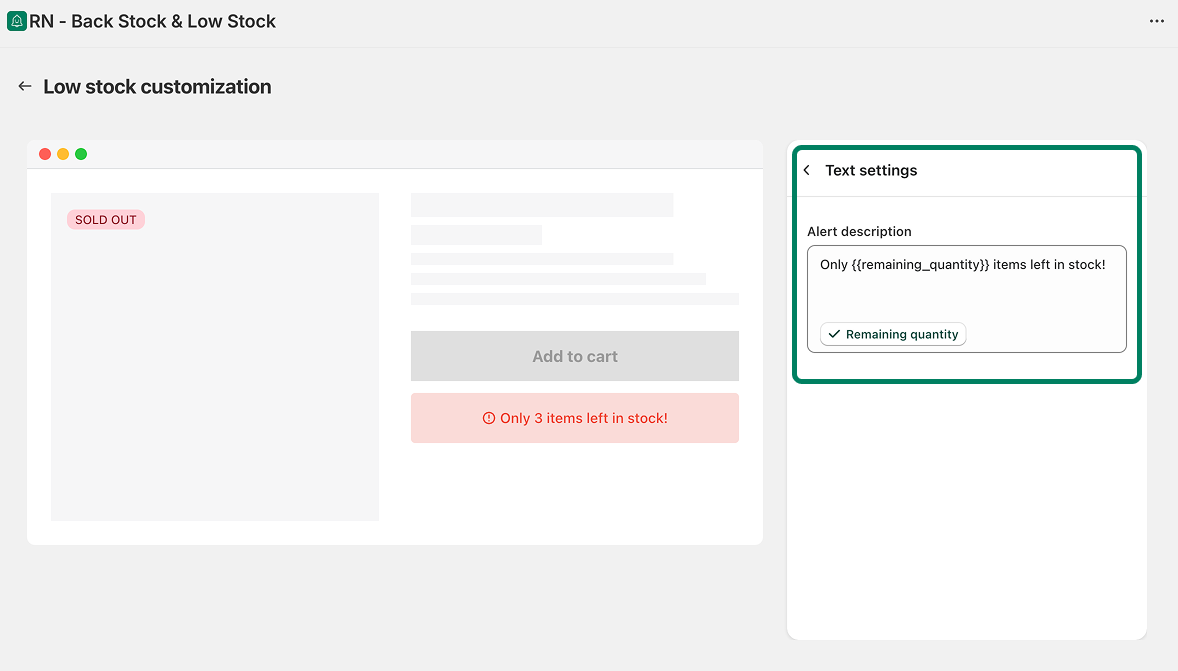
Text Settings
Change the message text shown to customers.
Use dynamic values like remaining stock (for example: Only {{remaining_quantity}} items left in stock!).
Design Settings
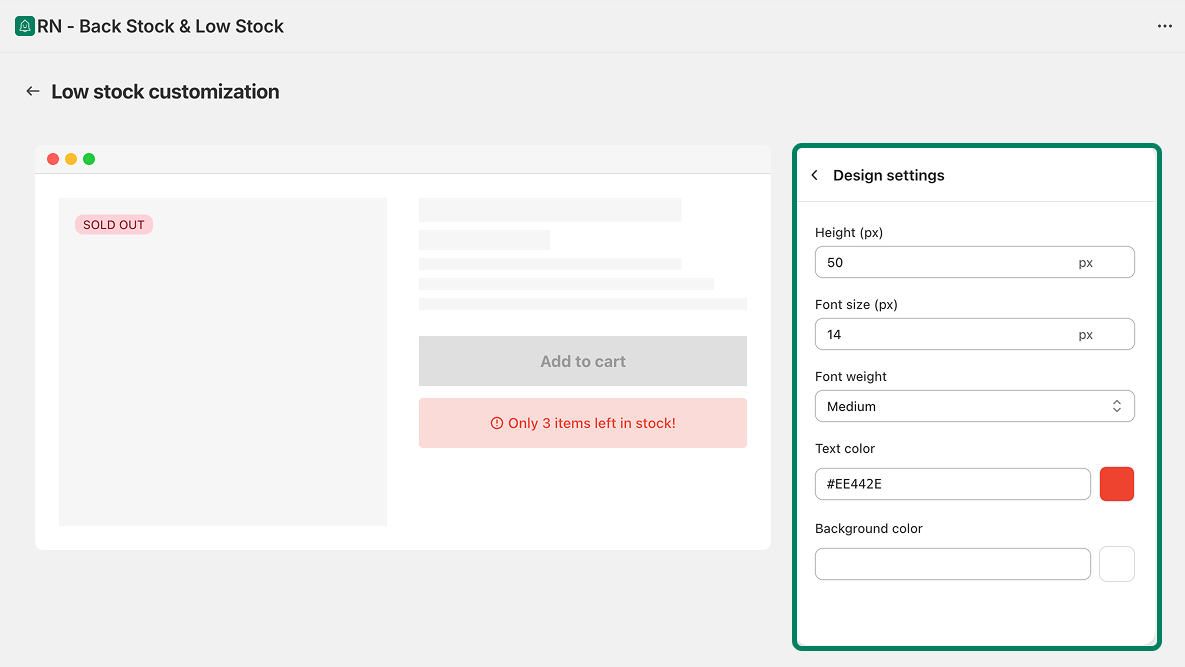
You can adjust how the message looks:
Message height
Font size
Font weight
Text color
Background color
Icon color
Show or hide the icon
Custom CSS (Optional)
Add your own CSS to fine-tune the design.
Styles apply only to the low stock message and won’t affect other elements.
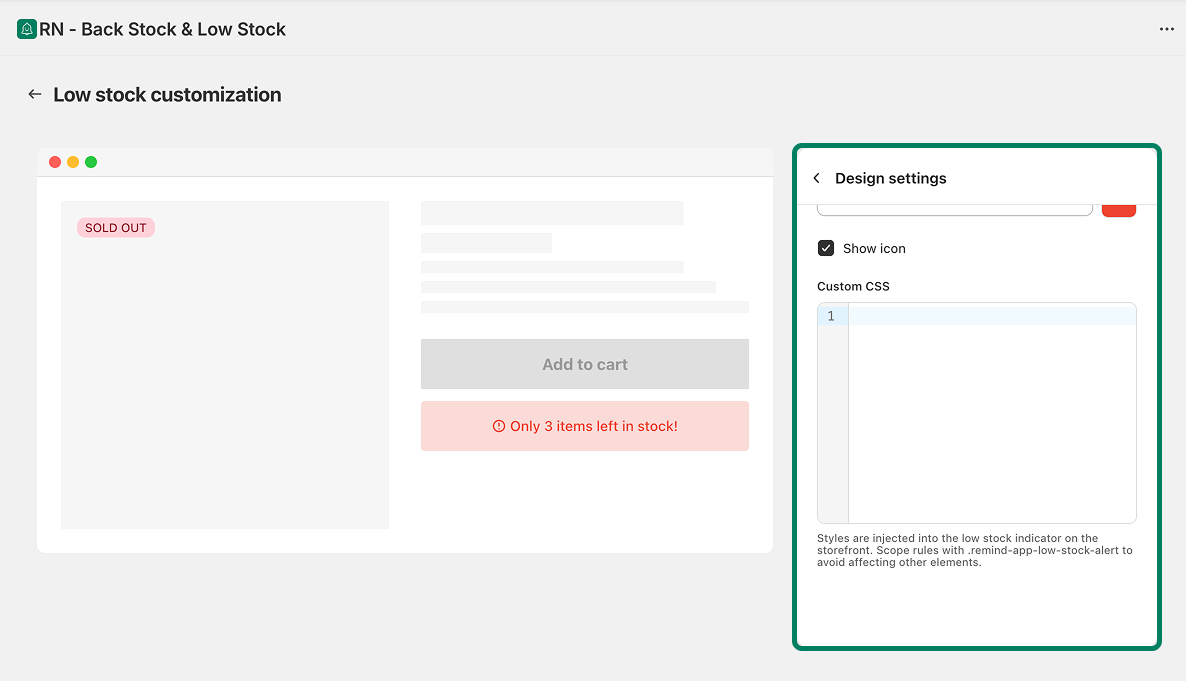
Preview Your Changes
The preview updates as you make changes, so you can see how the message will look on your product page before saving.