
Low stock messages are short notices shown near the Add to Cart button on product and collection pages. They alert shoppers when only a few items are left in stock.
These messages create urgency and help customers decide faster.
How to Enable Low Stock Messages
To show low stock messages on your Shopify store:
Open your app dashboard.
Find the Low stock messages section.
Click Enable.
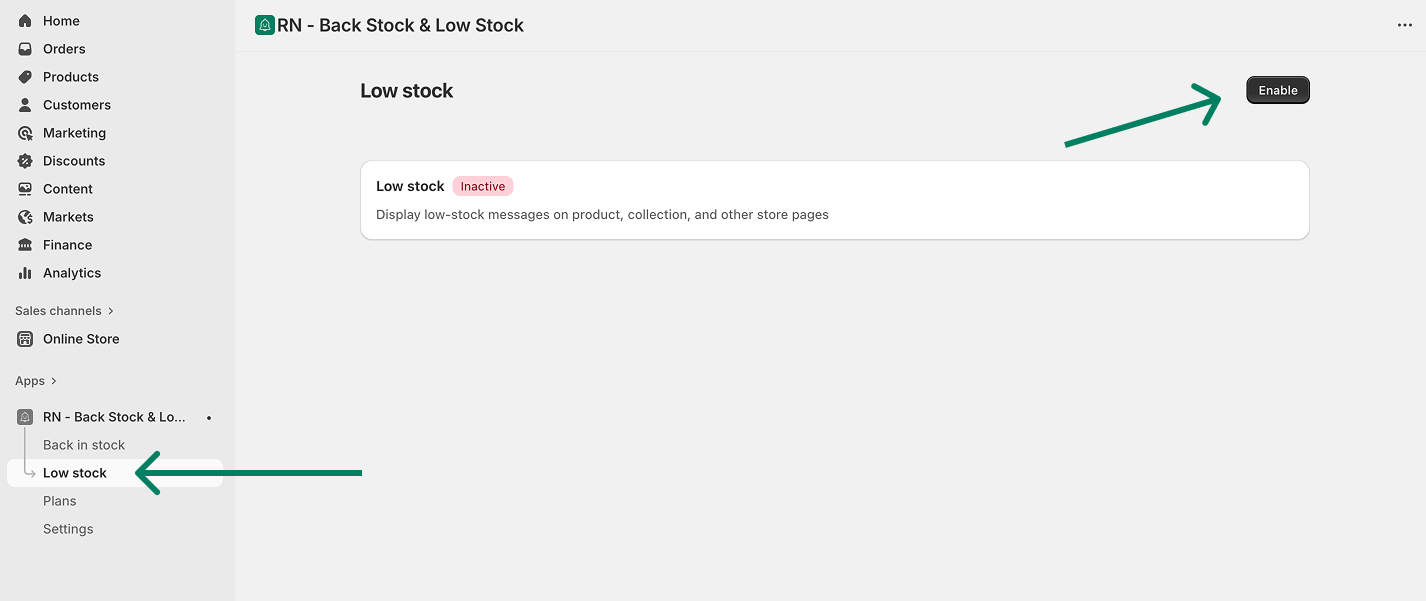
Once enabled, the message will appear automatically when stock is low (default threshold is set to 3).
Set the Minimum Stock Count
Go to Low stock → Settings.
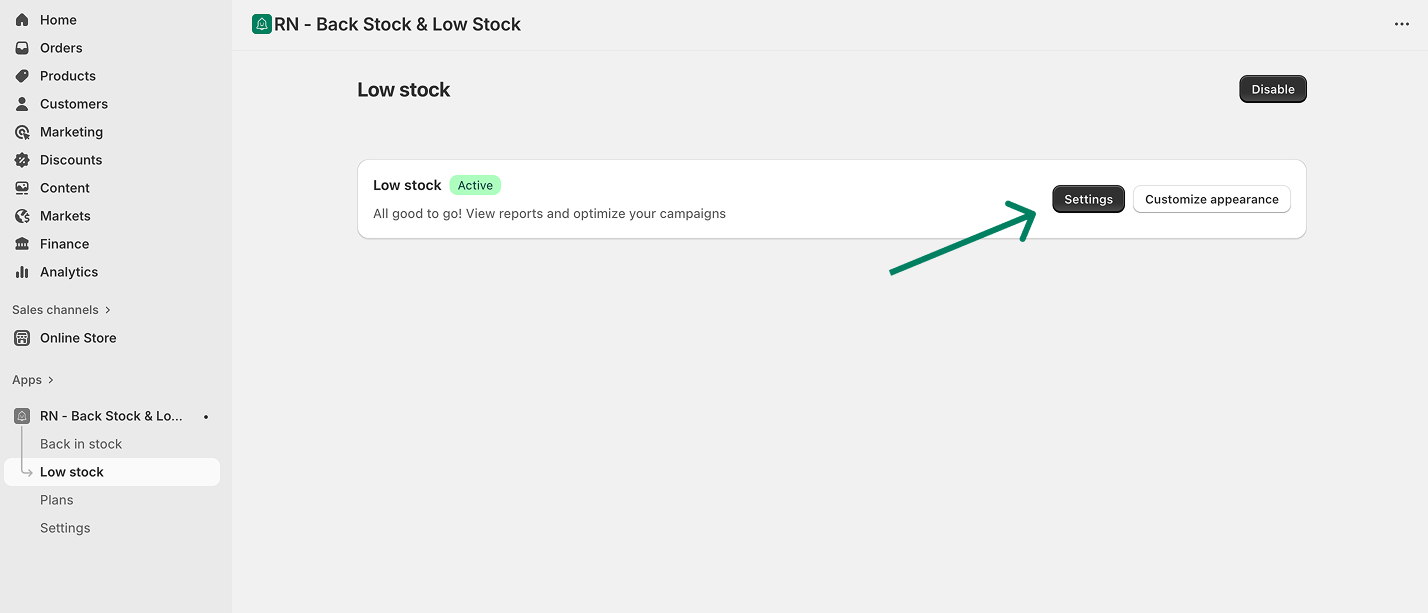
Enter the minimum stock number.
Click Save.
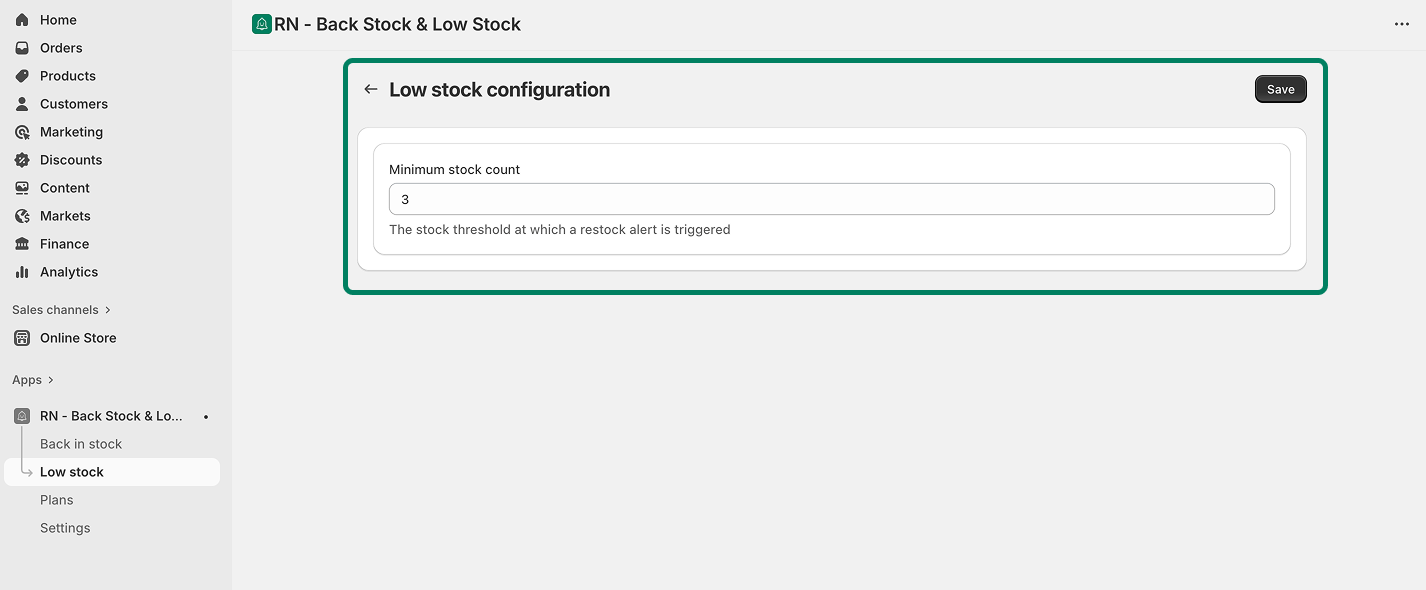
The message will show when the remaining inventory reaches that number.
Example:
If you set the value to 5, the message will appear when only 5 items are left in stock.