Back-in-Stock notifications are the automatic emails your customers receive once a sold-out product becomes available again.
Enable or Disable the Thank You Email
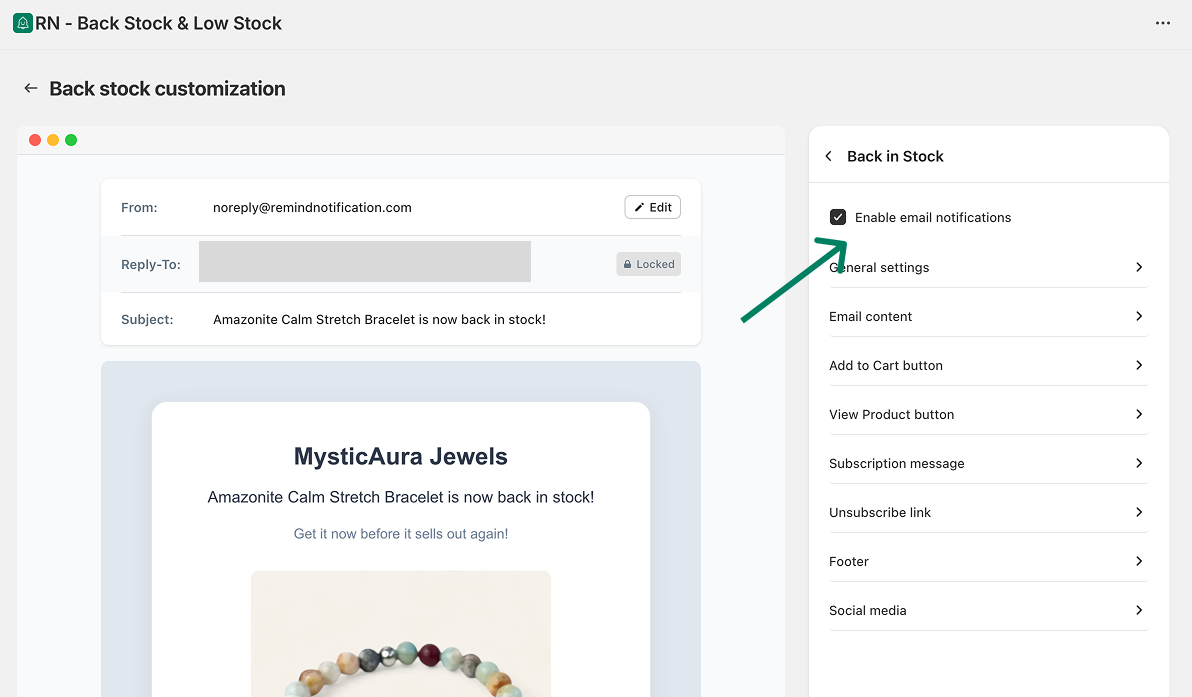
To manage the Thank You email:
Open the app.
Go to Back in stock → Customize → Notifications → Back-in-Stock.
Use the checkbox to enable or disable the Back-in-Stock email.
Customize the Back-in-Stock Email Template
You can customize the content and layout of the Back-in-Stock email.
To access the editor:
Go to Back in stock → Customize → Notifications →Back-in-Stock.
Here, you can customize:
General settings
Email content
Shop more button
View product button
Subscription message
Unsubscribe link
Footer
Social media links
Changes are shown in the preview as you edit.
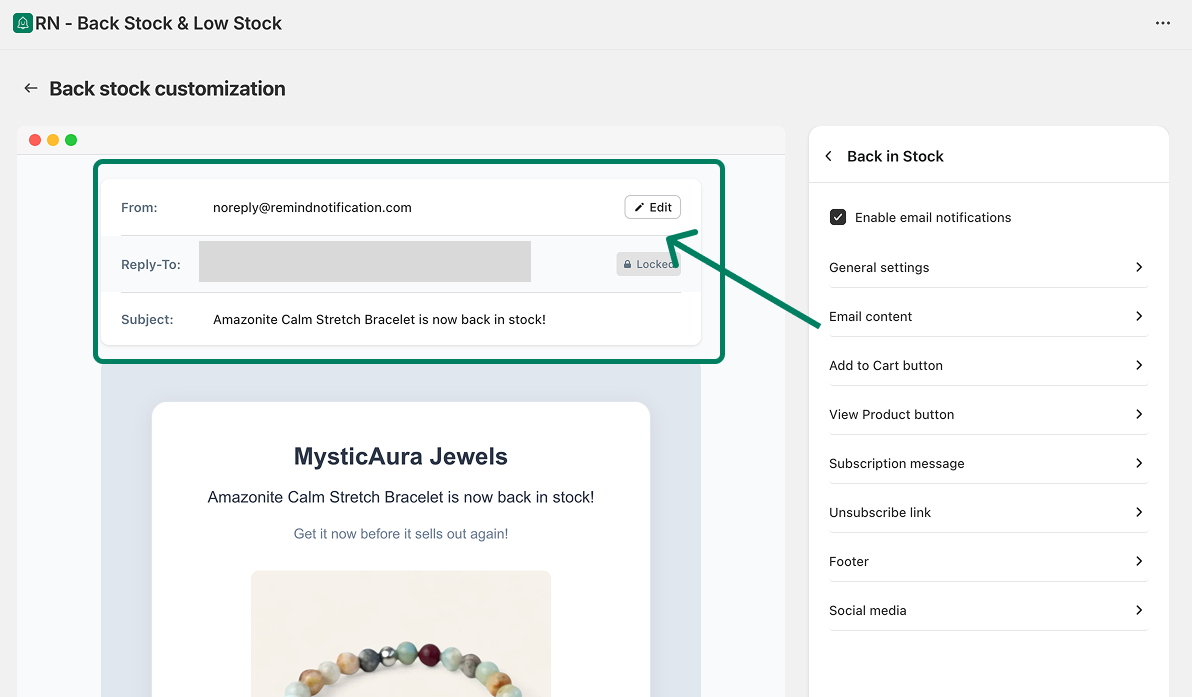
Edit the Sender Email
To change the sender email for the Back-in-Stock email:
Click the Edit button in the email preview.
You will be redirected to the Settings page.
Update the sender email from there.